
How to Install a New HDD or SSD in Your MAINGEAR Classic MG-1
Upgrading the storage on your Classic MAINGEAR MG-1 is a straightforward process. To install a new HDD or SSD in your Classic MAINGEAR MG-1, remove the side panel, mount the drive in the SSD tray or HDD bay, connect the power and data SATA cables, then plug the data cable into your motherboard. Full step-by-step instructions with photos are below.
Step 1: Remove the solid side panel from the right-hand side of the chassis. This reveals the SSD trays (highlighted in red) and the HDD bay (highlighted in blue).

Step 2: Install Your SSD
- Unscrew one of the SSD trays to detach it from the case.
- Line up the four screw holes on the tray and use four screws to mount your 2.5-inch SSD.
Step 3: Install Your HDD
- Locate the two protruding flaps on the HDD bay, squeeze them together, and pull the tray out.
- Line up the four screw holes on the tray and use four screws to mount your 3.5-inch HDD.
Step 4: Plug a power SATA cable and a data SATA cable into your new HDD or SSD.

Step 5: Remove the glass side panel by loosening the two thumbscrews on the back of the chassis, then plug the data SATA cable into your motherboard. Motherboard models vary, so port placement may differ.

Step 6: New drives
New drives need to be formatted before use. For formatting instructions, see the article below.
My newly installed drive won't show up (Format)
To add the HDD and the bay, please refer to the pictures and steps below:
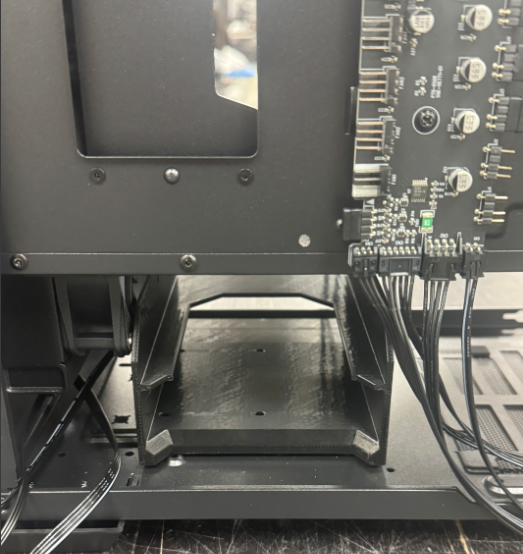
The HDD bay/cage will face this way in the Classic MG-1 system. You may need to undo some of the wiring to be able to have it fit, but undoing wiring may be unnecessary.
Once the HDD bay is in the Classic MG-1, you will use the screws provided to securely attach it to the chassis. You can refer to the photo below for where the screws/holes will line up on the bottom of the chassis:
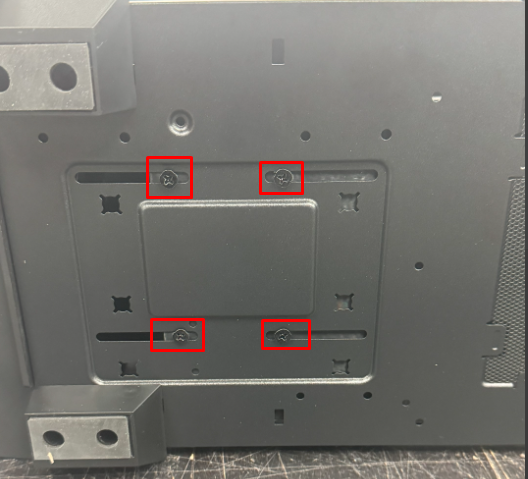
Now that you have the HDD bay mounted/installed, you can insert your HDD and connect the necessary wires for it.
Need help? Contact a MAINGEAR support agent at 1-888-MAINGEAR (908-620-9050) or email