
My new PC Won't Turn On: Troubleshooting Guide
If your MAINGEAR PC won't power on, work through these steps in order. Most power issues come down to a loose connection, a switched off PSU, or a power source problem rather than a hardware failure.
1. Check the Power Cable and Outlet
Make sure the power cable is fully seated into both the PSU and the wall outlet, surge protector, or UPS. Try a different outlet in another room if possible, since a dead outlet can look identical to a PC power failure.
2. Check Your Surge Protector or UPS
If your PC is plugged into a surge protector or UPS, confirm the unit itself is powered on and functioning. Some surge protectors have their own switch or reset button, and a UPS can go into a fault state that cuts power to connected devices. Try plugging your PC directly into a wall outlet to rule this out.
3. Check the PSU Power Switch
The PSU (power supply unit) is located at the back of your tower, usually toward the bottom. Confirm the rocker switch next to the power cable input is set to on (marked " | ", not "O"). This switch is easy to bump when moving or cleaning around the PC, and your system will not power on at all if it's off.

4. Try a Power Drain Reset
Unplug your PC from power completely, then press and hold the front power button for 10 to 15 seconds. This discharges any residual power in the system. Plug the PC back in and try powering it on again.
5. Check for Indicator Lights
Many MAINGEAR systems have an LED on the motherboard or PSU that lights up when the system is receiving power, even if it hasn't fully booted. If you see no lights at all after checking steps 1 through 4, this points toward a power delivery issue rather than a boot issue, which is worth mentioning if you contact support.

6. Advanced Steps (If You're Comfortable Opening the Case)
If the steps above haven't resolved the issue, the following steps involve opening your PC case. Only proceed if you're comfortable doing so. If not, skip to contacting support below.
Check Internal Power Connections
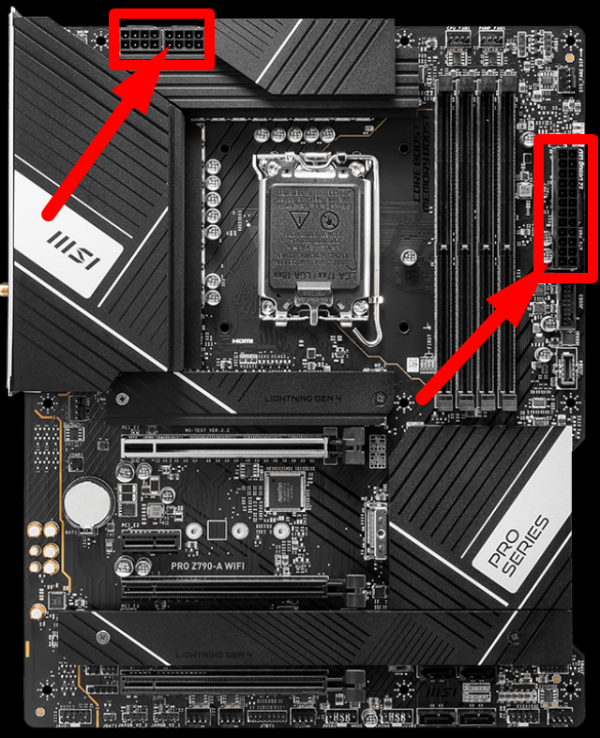
Open your case and confirm the main power connections are fully seated, both on the motherboard and at the power supply. Check the connections highlighted in the images below.

Power Button
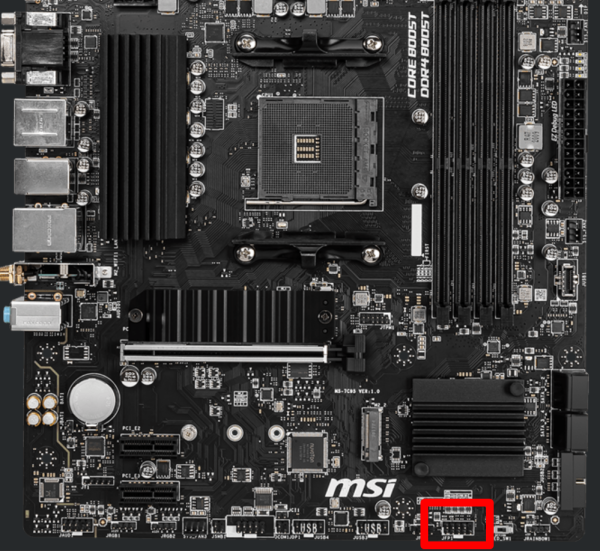
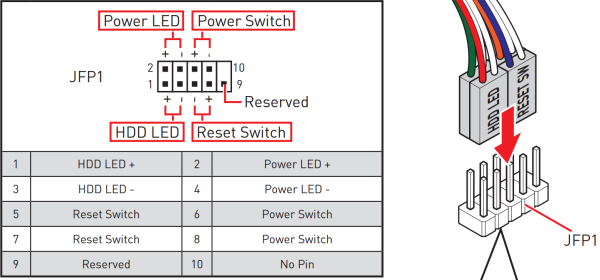
Make sure the front panel power button is connected and working (JFP1). The connector is labeled "Power SW", if it's plugged in, you can unplug it and use a screwdriver to bridge the gap between the two pins, this will allow the system to turn on if getting power.
If you've worked through these steps and your system still won't power on, don't attempt any further internal troubleshooting beyond what's outlined here. Contact MAINGEAR Support so we can help diagnose the issue safely, whether that means a remote troubleshooting session or a service ticket. MAINGEAR Support agents: (908-620-9050) or support@maingear.com